
What's new at a glance
CRM Management
Two new CRM features are now available under Office Settings, giving you a more structured way to manage your customer database and organize contacts across your office.
Customer list with search and bulk actions
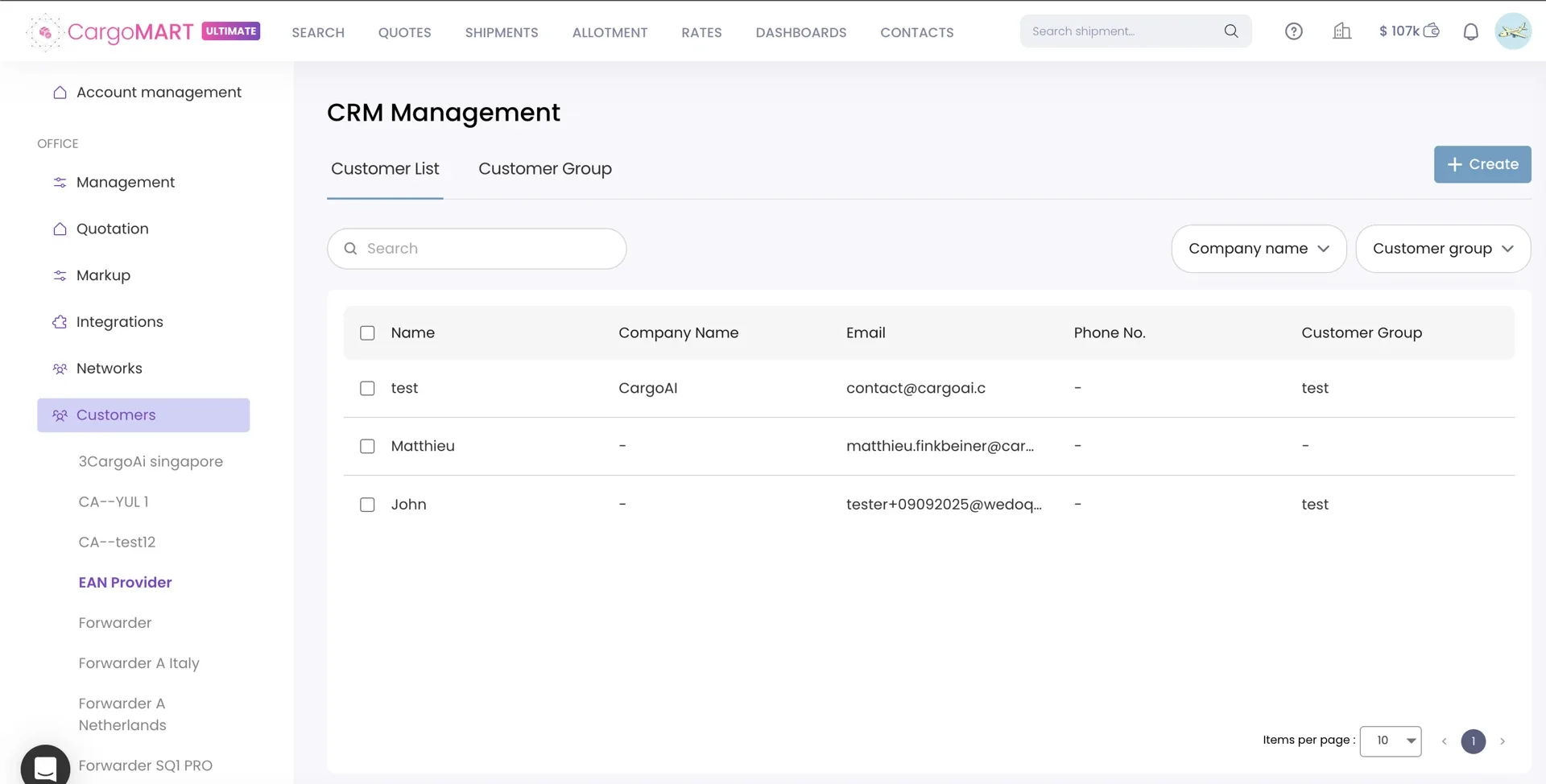
The new CRM Customer List tab brings all your customer records into one place. View company names, contact names, email addresses, phone numbers, and assigned customer groups in a single table. Search by company name, customer name, or email, and combine company and group filters to narrow down your results.
You can create, edit, delete, or duplicate customer records, move individual customers between groups, or select multiple customers to delete or move them in bulk.
Your customer database is easier to maintain and navigate. Find the right contact faster, keep records up to date, and manage multiple customers at once without repeating the same actions individually.
Go to Office Settings → Customers → CRM Management → Customer List.
Customer groups management
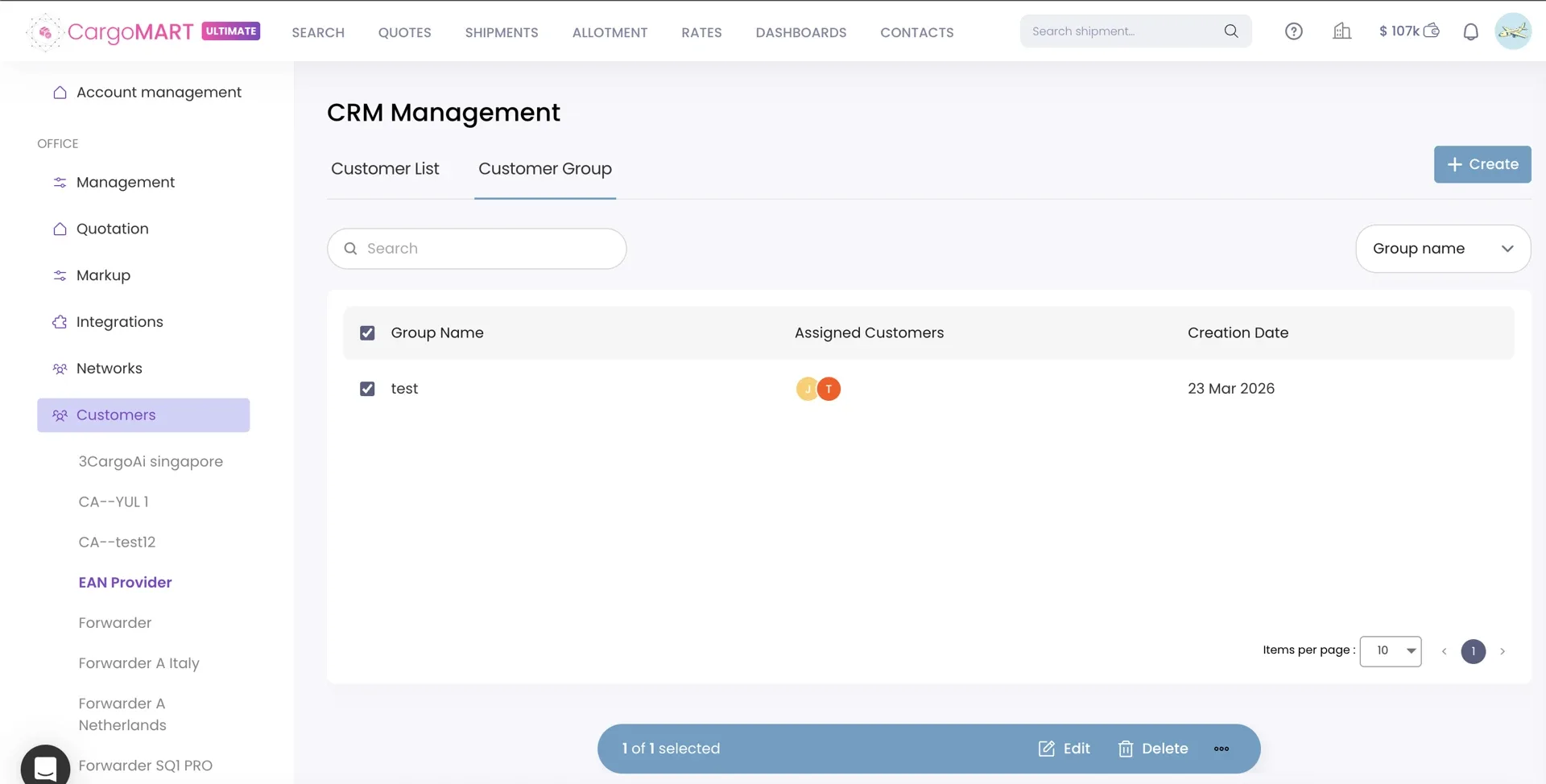
The new Customer Group tab lets you organize customers into dedicated groups directly from CRM Management. Create a group, give it a name, and assign customers using a searchable dropdown. You can also rename existing groups or delete individual or multiple groups.
The group list displays each group's name, number of assigned customers, and creation date, with search functionality to find specific groups quickly.
Keep your customer database organized as your business grows. Group related customers together, see how many contacts belong to each group, and make changes without managing every customer record separately.
Go to Office Settings → Customers → CRM Management → Customer Group.
AWB Stocks — Dynamic prefix selection
Choose your preferred AWB stock prefix
When multiple AWB stock prefixes are available for the same airline, CargoMART now lets you choose which prefix to use before completing a booking.
If your office has only one available prefix, the system automatically retrieves the next available AWB number as usual. When multiple prefixes exist, a selection tool appears so you can choose the appropriate stock.
Once selected, CargoMART uses that prefix exclusively during automatic retries, up to 10 attempts. If the selected stock is exhausted, the process stops and displays an error rather than switching to another prefix.
You stay in control of which AWB stock is consumed during booking. No unintended allocation from another prefix, even when the airline rejects an AWB and the system retries automatically.
Works automatically during the booking flow when multiple AWB stock prefixes are available for the selected airline.
Allotment
Two improvements to Allotment History this month, making it easier to identify unmatched requests and keeping booking statuses accurate when no airline update has been received.
Automatic cancellation of outdated pending bookings
Allotment bookings that remain in "Pending Airline Creation" status are now automatically moved to "Booking Cancelled" seven days after the planned departure date of the first flight leg, provided no tracking update or manual action has occurred.
The system records the cancellation in the booking's audit trail, and affected bookings remain visible under the Cancelled filter in Allotment History.
Your Allotment History stays accurate without manual cleanup. Outdated pending bookings no longer remain open indefinitely, while the cancellation history remains available for reference.
Original flight details for unmatched allotment requests
When CargoMART cannot automatically match an allotment request to a flight through its APIs or crawlers, the Allotment History page now displays the original Flight Number and Departure Date from your uploaded allotment_template.csv file instead of "TBC".
The information you provided during the upload remains visible even when automated flight matching has not succeeded.
You can see exactly which flight you originally requested without reopening your CSV file or trying to identify an unmatched booking from incomplete information.
Go to Allotment → History. Original flight details appear automatically for unmatched requests.
Rate Management System
This month's RMS updates bring more flexibility to rate uploads, new pricing categories, and improved export options — making it easier to manage and compare rates across different shipment requirements.
15 weight break tiers with flexible uploads
The RMS now supports 15 weight break tiers, including seven new additions: +25, +250, +750, +2500, +5000, +7500, and +10000.
Rate uploads are also more flexible. The system now detects weight break columns based on their headers, so you can remove unused columns from your Excel or CSV files without causing upload errors. The updated template includes all 15 tiers, while files using the previous 8-break format continue to work.
The RMS interface adapts to the available data. In Accordion view, only weight breaks containing rate values are displayed. In Table view, all seven new tiers are available in the column picker, and empty values appear as a dash.
Manage a wider range of pricing structures without adding unnecessary columns to your rate files. Upload only the weight breaks you need and keep your rate views clear and easy to read.
Go to Rates → Rate Management System. The new weight breaks are available in rate uploads and RMS views.
New Adhoc and Consol rate types
Two additional rate types are now supported in RMS: Adhoc and Consol.
Adhoc rates are designed for one-off spot pricing, while Consol rates represent pricing negotiated specifically for consolidation shipments.
Both follow the same visibility rules as Contract rates. Rates are only displayed to eligible offices matching the specified 7-digit IATA or 11-digit IATA-CASS number. An IATA or IATA-CASS entry is required when uploading either rate type.
Adhoc and Consol are now available in the rate upload template and RMS filters, with dedicated labels in Accordion view, Table view, and CargoMART search results for eligible offices.
Keep spot, consolidation, and contract pricing clearly separated while maintaining control over which offices can access each rate. Your team can identify the appropriate pricing type directly in RMS and search results.
Excel exports with local charges
You can now export rate data from RMS → Compare Rates directly in Excel (.xlsx) format, alongside the existing CSV option.
Both export formats respect the filters currently applied on the page. The Excel version preserves column headers and avoids the delimiter issues that can occur when opening CSV files.
The Excel export also includes a second worksheet, "My Local Charges", containing your office-level local charges, including selling rates, minimums, maximums, units of measure, charge types, airports, and currencies.
Review airline rates and your office's local charges in a single Excel file, making pricing comparisons and offline analysis easier without exporting or combining separate datasets.
Go to Rates → Rate Management System → Compare Rates and select Excel in the export options.
Quotation — Editable chargeable weight
Adjust chargeable weight without restarting your quote
In Step 2 (Forwarder & Margin) of the quotation flow, the Chargeable Weight field is now editable.
You can manually enter a different chargeable weight without discarding your quote or starting a new search. CargoMART automatically recalculates the Total ALL IN Cost and Forwarder Margin for all selected airlines using the updated value.
If the weight you enter is lower than the chargeable weight calculated during the original search, a warning appears to alert you.
Adjust your quotation to reflect updated shipment requirements without starting over. Costs and margins update across all selected airlines at once, saving time when fine-tuning a quote.
In the quotation flow, go to Step 2 (Forwarder & Margin) and edit the Chargeable Weight field.
Booking Modifications — Flexible departure dates
Select departure dates based on flight availability
When modifying a confirmed booking, you're no longer limited to the previous three-business-day departure window.
The departure date calendar in the Modify Flight Details modal now enables dates based on actual flight availability. If flights are available on an earlier eligible date, you can select it. Dates without available flights remain disabled.
This applies to bookings in Booking Confirmed status that have not yet moved to In Transit. Only eligible future departure dates, at least approximately 24 hours from the current time, can be selected.
You have more flexibility to adjust confirmed bookings when shipment plans change. Choose from available future departures rather than being restricted to a fixed date window.
Open a shipment in Booking Confirmed status and select Modify Flight Details to view available departure dates.
Upgrade
Get more out of CargoMART with the latest improvements to customer management, rate management, quotations, and booking workflows.
Explore the new features in your CargoMART workspace and discover how they can simplify your daily air cargo operations.