
What's new at a glance
Search Enhancements
Three improvements to the CargoMART search experience this month, helping you identify potential surcharges, compare flight options, and move from search to booking more efficiently.
Non-stackable cargo surcharge disclaimer
When you deselect the "Stackable" checkbox on the CargoMART search page, a new disclaimer appears to inform you that non-stackable cargo may incur additional NST surcharges from the airline.
The warning is displayed directly during the search process, before you select a flight or proceed with a booking.
Get greater visibility into potential additional charges before booking. This helps you anticipate costs, prepare more accurate quotations, and avoid unexpected airline surcharges.
On the CargoMART search page, deselect the Stackable checkbox to display the disclaimer.
Open bookings in a new tab
CargoMART subscribers can now open the booking page in a new browser tab when selecting "Book Now" from search results.
Your original search results remain open in the previous tab, allowing you to return to your search and continue comparing available flights without starting over.
This feature is available to subscribed users. Free-plan users continue to access the booking page in the same tab.
Keep your search results accessible while completing a booking. Compare multiple flight options, review alternatives, and manage your booking process without losing your original search context.
Improved aircraft details and flight schedules
The Aircraft Details modal now provides a clearer overview of available aircraft and flight schedules.
Flight information is grouped by itinerary rather than fragmented across different operating days. Each leg now displays its flight number, along with Scheduled Departure Time (SDT) and Scheduled Arrival Time (SDA).
Review aircraft options and flight schedules more easily, with clearer routing information and timing details to support your shipment planning.
Open the Aircraft Details modal from the CargoMART search results page.
Booking Enhancements
Four improvements to booking and shipment management this month, reducing repetitive data entry and making it easier to share flight information and manage booking documents.
Automatic Execution Place on Master AWB
The Execution Place field on the Master AWB is now automatically populated using your office's configured airport.
CargoMART retrieves the airport information from Office Settings and converts the IATA airport code into the corresponding city name.
The field remains editable if you need to make adjustments.
Save time when preparing Master AWBs and reduce repetitive data entry. Your office's execution location is automatically available while remaining flexible when changes are required.
Configure your airport under Office Settings → Management. The Execution Place field is then automatically populated when preparing a Master AWB.
Rebook cancelled shipments with pre-filled details
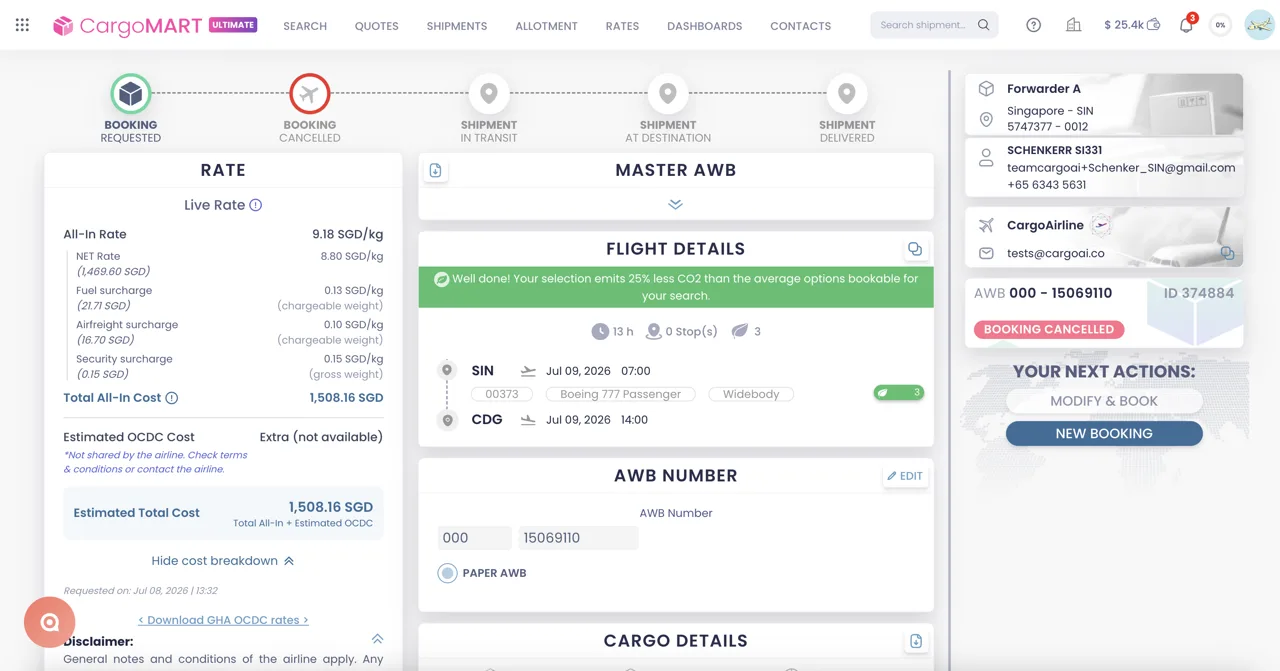
A new "New Booking" button is now available for cancelled bookings in Shipment History.
Clicking the button takes you directly to the search page with your original shipment information already filled in, including origin, destination, dates, weight, dimensions, and commodity.
You can then review the available flights and proceed with a new booking.
Rebook cancelled shipments without entering the same information again. Reduce manual work and quickly find alternative flights using your original shipment requirements.
Go to Shipment History, open a cancelled booking, and click New Booking.
Copy booked flight details in one click
A new copy icon is now available in the Flight Details section of the booking details page.
Clicking the icon copies a structured summary of your booked route, flight schedule, and flight information directly to your clipboard.
The copied details can then be pasted into emails, messages, or other documents.
Share accurate flight information with colleagues and customers in seconds, without manually copying individual details from your booking.
Open a booking's details page and click the copy icon in the Flight Details section.
Automatic airline notifications for uploaded documents
Airlines now receive a dedicated email notification whenever a forwarder uploads documents to a booking, whether during the initial booking process or after confirmation.
When multiple documents are uploaded together, CargoMART groups them into a single email containing each file's name and size, alongside the relevant shipment information.
The notification includes details such as the forwarder, AWB, route, flight, departure date, and commodity.
Ensure airlines are informed whenever new shipment documents are available, reducing manual follow-ups and improving communication throughout the booking process.
Allotment — Batch booking cancellation
Cancel multiple allotment bookings at once
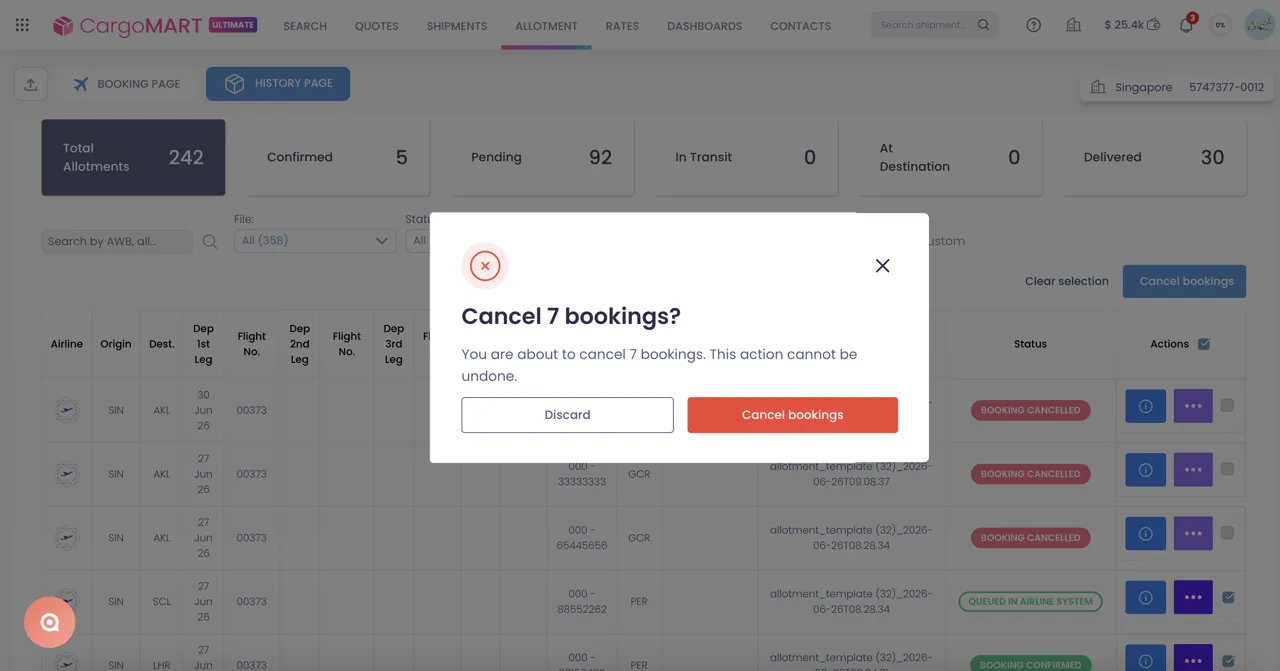
You can now cancel multiple allotment bookings in a single action directly from the Allotment History page.
Checkboxes are available for bookings in eligible statuses, including Pending Airline Creation, Fix and Retry, Waiting for Response, and Queued in Airline System.
Select the bookings you want to cancel, click "Cancel bookings", and confirm your selection.
Clear multiple pending or failed allotment entries without cancelling them individually. Keep your allotment history organized and prepare clean re-uploads without encountering "AWB already used" errors from previous entries.
Go to Allotment → History, select eligible bookings, and click Cancel bookings.
OCDC — Greater cost transparency
This release introduces several improvements to Other Charges Due Carrier (OCDC) visibility, making it easier to understand the total estimated cost of a shipment before booking and throughout the confirmation process.
Clearer OCDC breakdown and estimated total costs
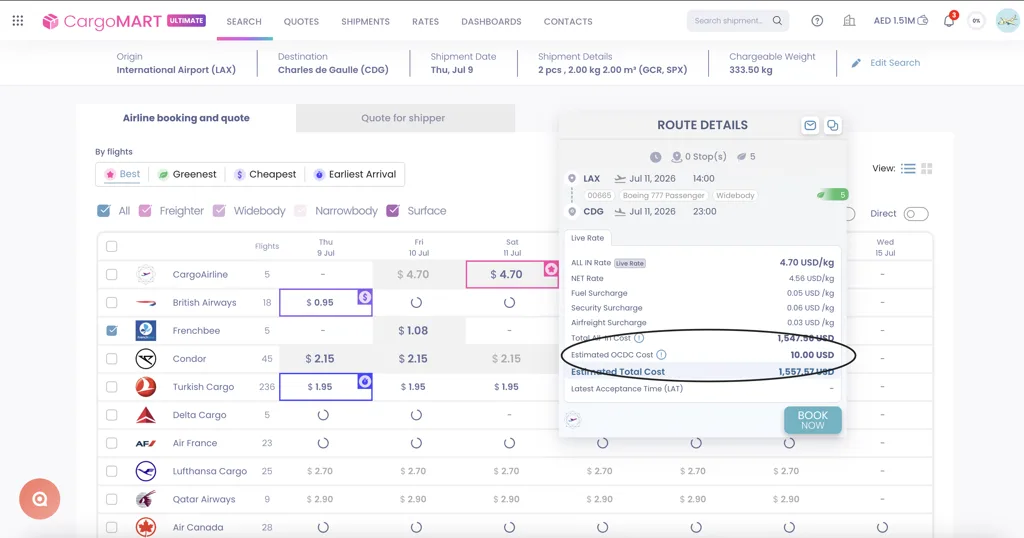
The OCDC cost display has been redesigned across search results and shipment details.
The updated breakdown now uses three clearly identified values:
- Total All-In Cost: The shipment's all-in cost before additional OCDC charges.
- Estimated OCDC Cost: The estimated additional carrier charges, when available.
- Estimated Total Cost: The combined estimated cost, including OCDC.
The previous separate expansion controls have been replaced with a single "Hide/View cost breakdown" toggle.
Additional information tooltips explain how OCDC estimates are presented, including when the airline does not provide OCDC information.
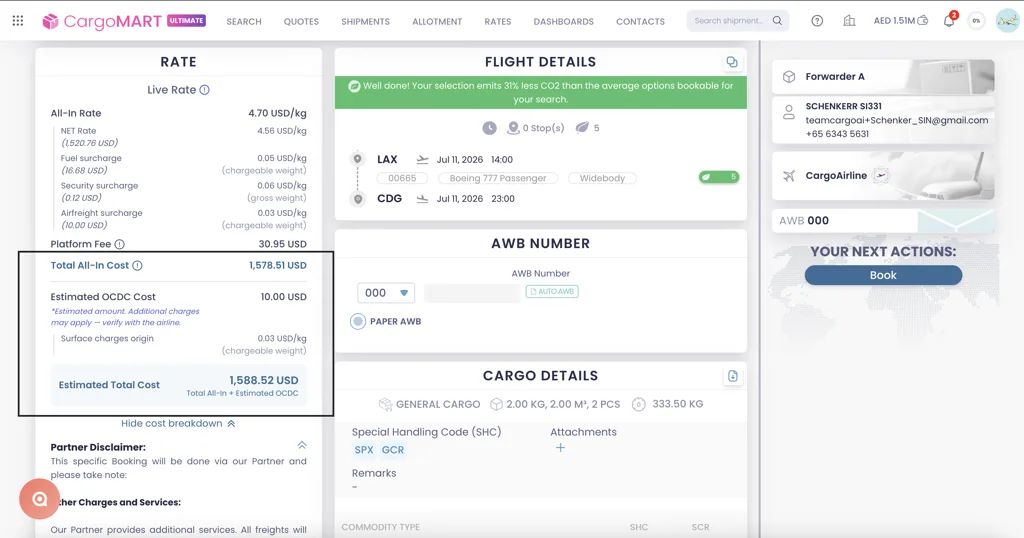
Understand the estimated total shipment cost more clearly before booking. With OCDC information presented alongside the all-in cost, you can better anticipate additional charges and reduce pricing surprises.
OCDC breakdown visible by default
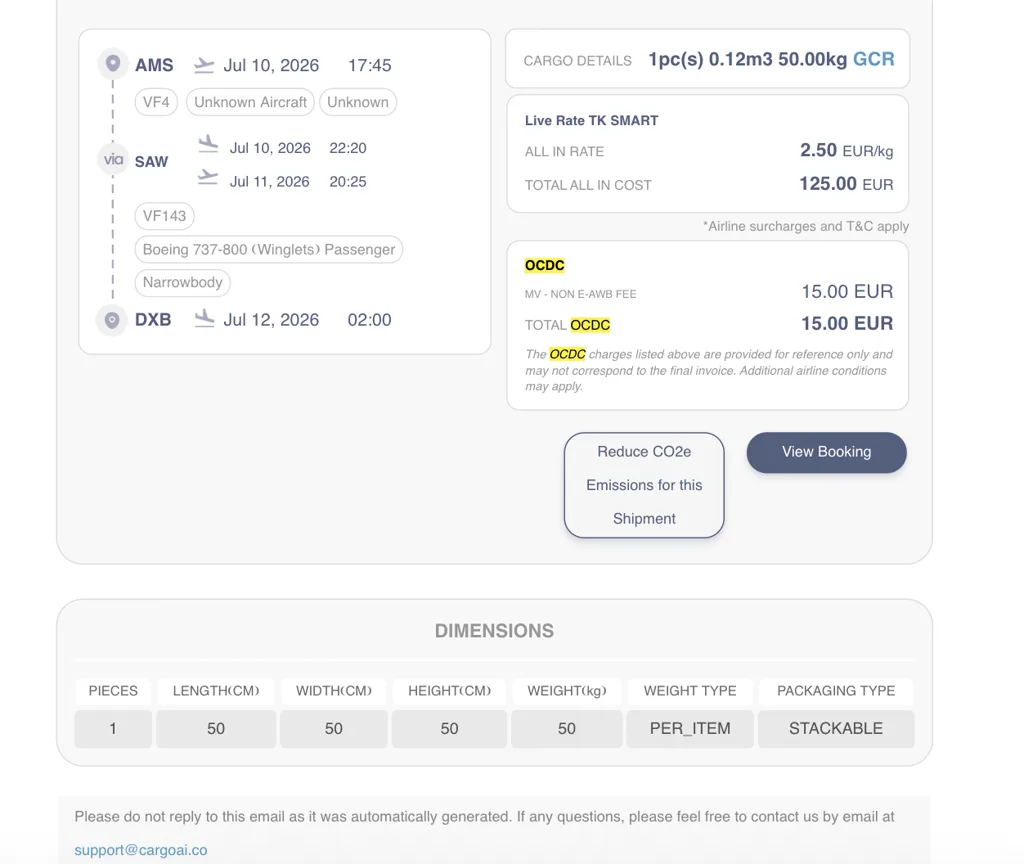
When OCDC charges are available, their detailed breakdown is now automatically expanded on the Shipment Details and booking checkout pages.
You can immediately review individual OCDC charges without manually opening a separate section.
Review additional carrier charges before confirming a booking, with all available cost details displayed upfront.
OCDC information in booking emails
Booking Requested and Booking Confirmed emails now include OCDC information directly in the email body.
When the airline provides OCDC data, the email displays the relevant charge details and totals.
When OCDC information is unavailable, an advisory disclaimer is included instead.
Keep a clearer record of estimated carrier charges directly in your booking communications, making it easier to review and share cost information without returning to the platform.
Local Charges — Partner-shared charges on shipment details
View partner local charges alongside your shipment costs
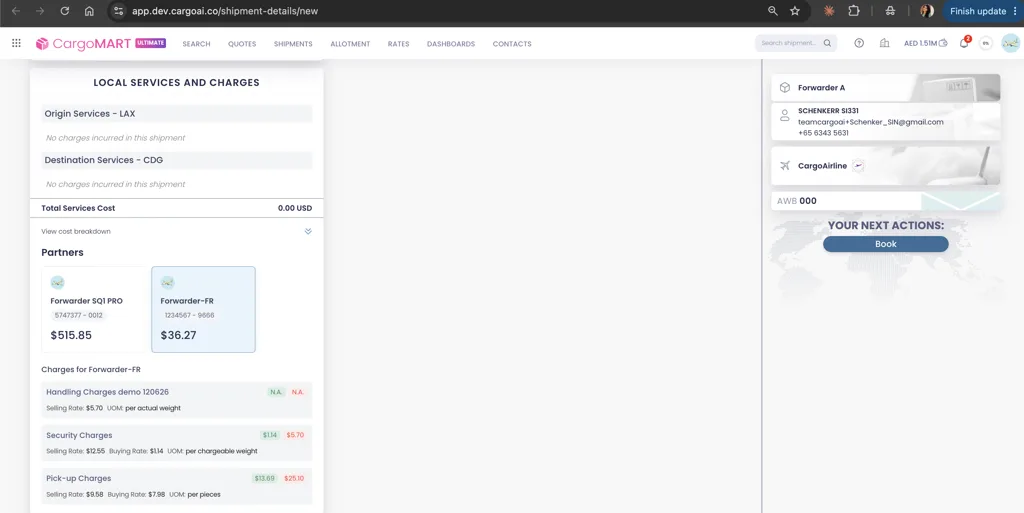
The "Local Services and Charges" section on the shipment details page now includes local charges shared by your destination partner agents through CargoMART.
Charges are organized under two dedicated categories: Origin Services and Destination Services.
When charges are shared by a partner, the partner's office name is displayed alongside the corresponding costs.
Get a more complete view of applicable local charges, including those shared by your partner network. Review origin and destination services together without switching between separate sources.
Open a shipment's details page and navigate to Local Services and Charges.
Quotation
Three improvements to the quotation flow this month, helping you present more complete pricing information and personalize customer-facing quotations.
Airline OCDC charges included in quotations
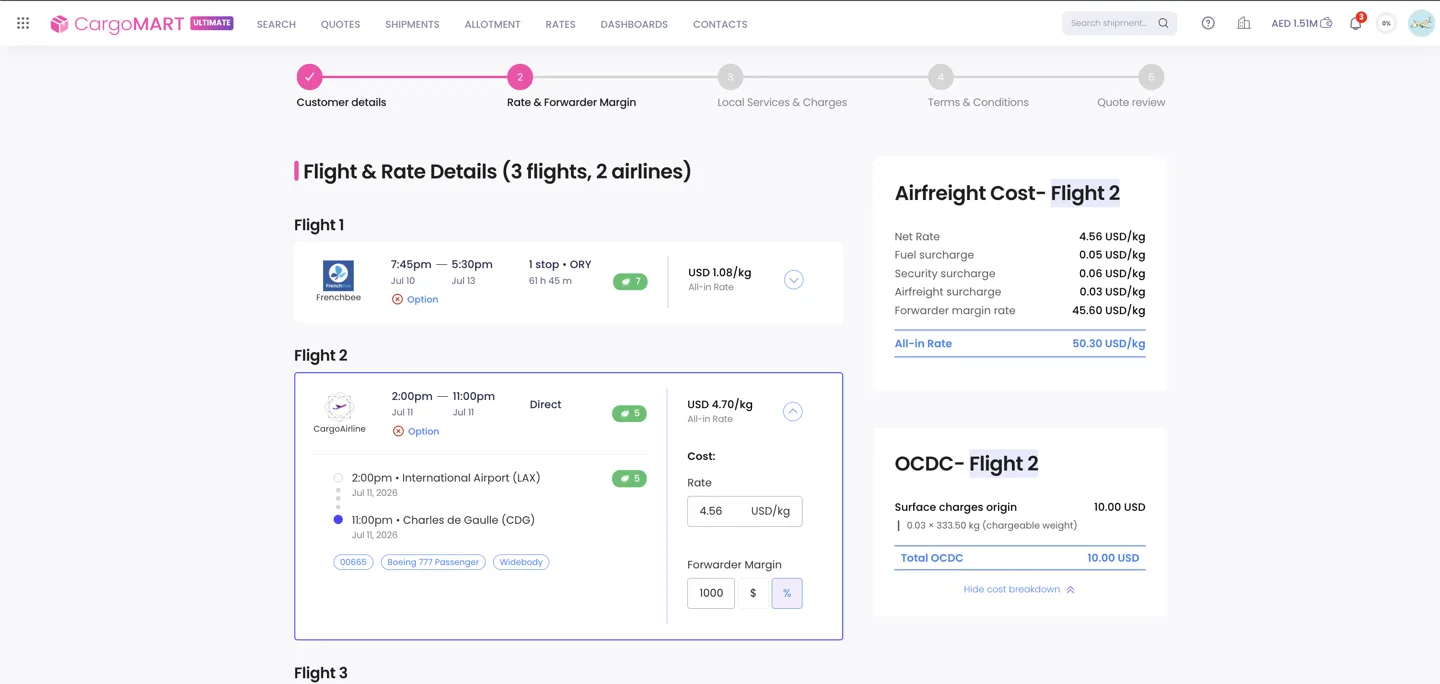
Airline OCDC charges are now displayed directly in the quotation process when the airline provides this information through its API.
Previously, these additional charges were only visible during booking confirmation.
OCDC details are now available in Step 2 of the quotation flow, the quotation preview in Step 5, and the downloadable PDF.
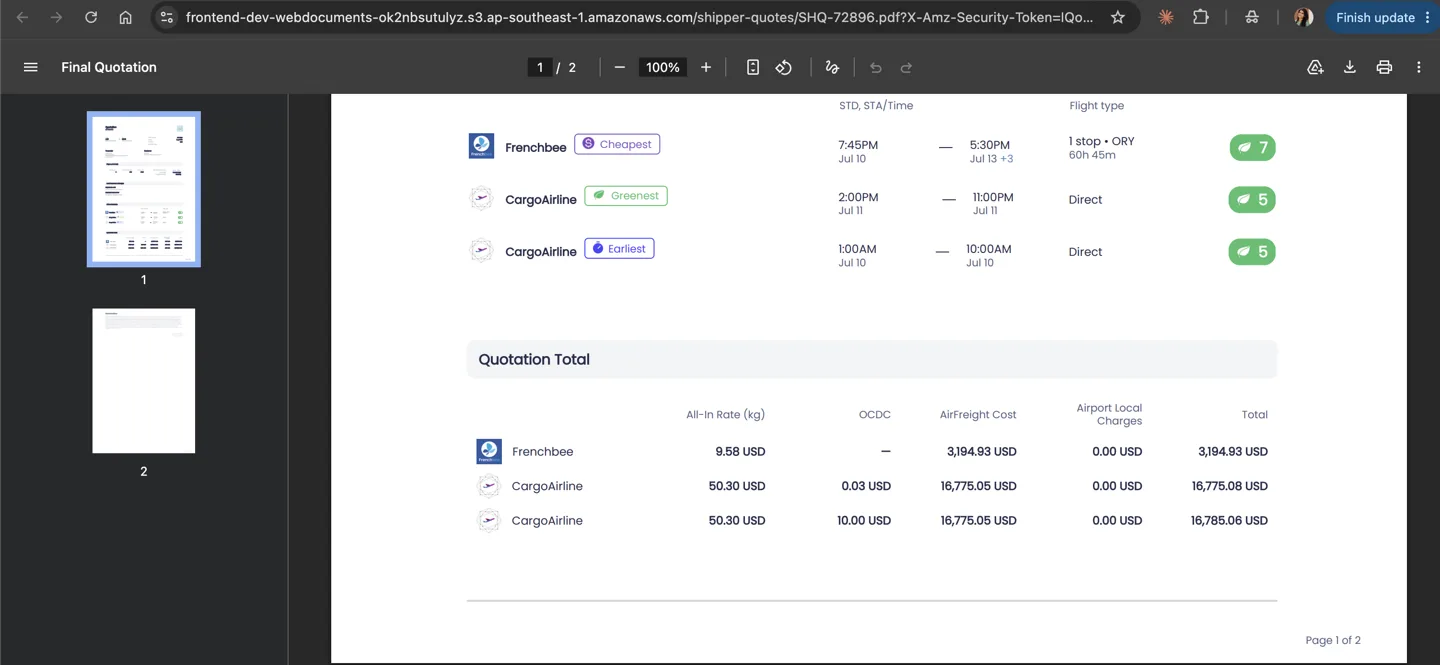
Provide customers with a more complete cost breakdown before booking. Include available airline OCDC charges directly in quotations to improve pricing transparency and reduce unexpected costs.
Add your own customer quotation reference
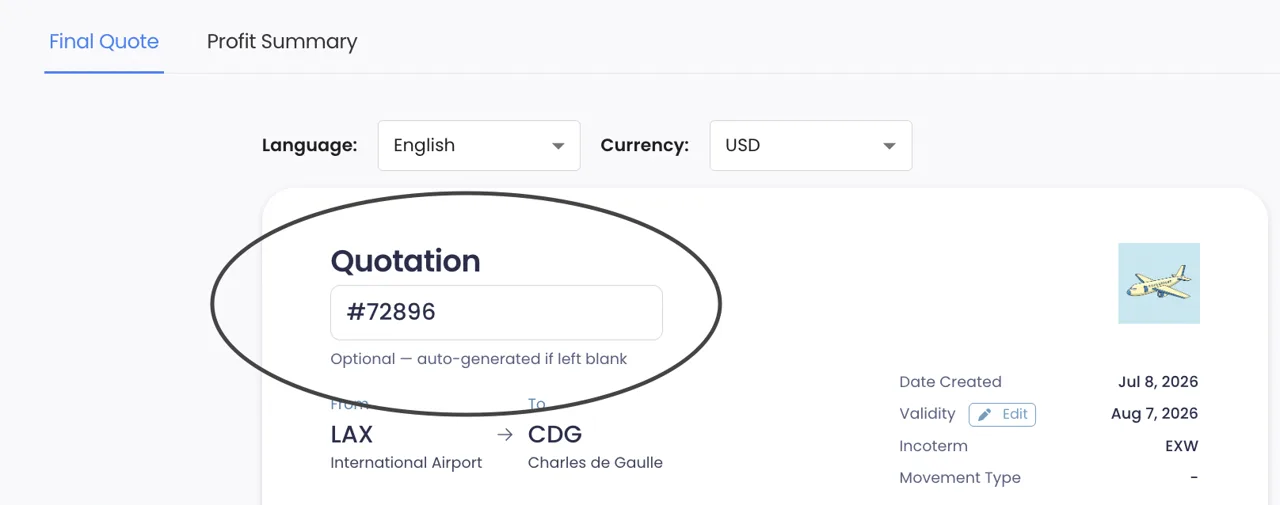
You can now assign your own reference number to a quotation, such as Q-2026-042, directly from the Step 5 quotation preview.
The reference can be edited inline next to the "Quotation" title and appears in the customer-facing PDF, quotation list, search results, and customer email subject.
CargoMART's internal reference remains available in the PDF footer for tracking and support purposes.
References must be unique within your forwarder organization. A warning appears if you enter a duplicate, and the reference becomes read-only once the quotation is accepted or booked.
Align CargoMART quotations with your company's internal reference system, making it easier to organize, identify, and track customer quotes across your workflows.
In the quotation flow, go to Step 5 and edit the customer reference next to the Quotation title.
Add custom notes for your shipper
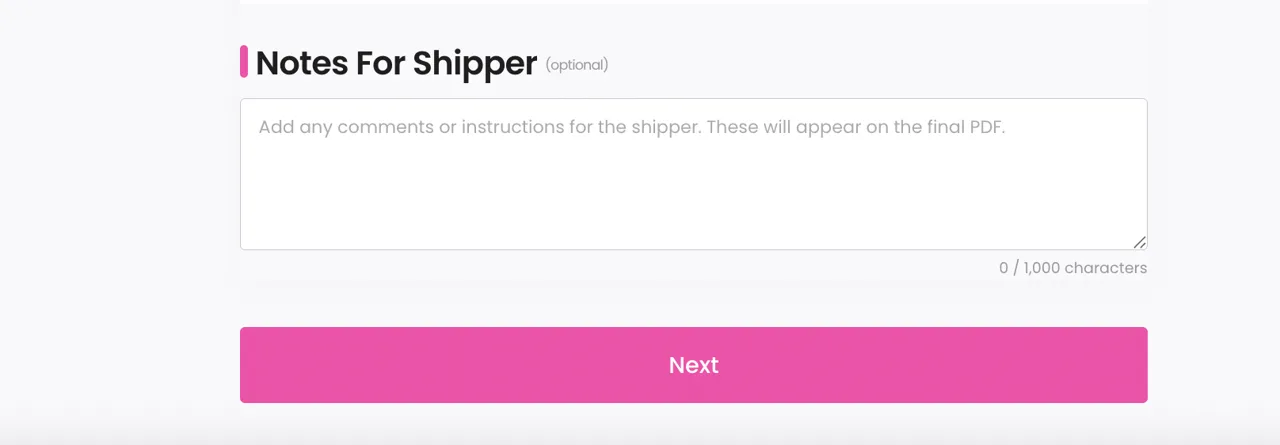
A new optional "Notes for Shipper" field is now available in the quotation flow.
You can add up to 1,000 characters of custom comments, instructions, or additional information for your customer.
These notes appear in a dedicated section of the final quotation PDF, separate from your Terms & Conditions.
The field includes a live character counter, and previously entered notes are retained when editing an existing quotation.
Personalize quotations with shipment-specific instructions or commercial information without modifying your standard Terms & Conditions.
In the quotation flow, open the Terms & Conditions page and enter your notes in the Notes for Shipper field below the Validity Date.
Roles & Permissions — More control over office access
Manage users and create custom roles
A new "Roles and Permissions" section is now available in Office Management settings, giving office administrators greater control over team access and responsibilities.
The new Users tab allows administrators to invite team members, assign roles, update existing user permissions, and remove users from an office.
A Viewer role is automatically assigned as the base role, while additional custom roles can be allocated according to each user's responsibilities.
The Roles tab lets administrators create and manage custom roles using detailed permissions for individual CargoMART modules.
Existing system roles — Office Admin, Viewer, and Standard — remain available and cannot be modified.
Changes to custom roles are automatically reflected for all users assigned to them.
Give team members access to the tools and actions relevant to their responsibilities. Manage office permissions more efficiently, maintain control over sensitive operations, and adapt access as your organization grows.
Go to Office Management → Roles and Permissions to manage users and configure roles.
Rate Management System
Four improvements to RMS this month, bringing more flexible rate uploads, faster markup management, better visibility into internal rates, and easier rate editing.
Support for "On Request" rates

The RMS rate upload template now accepts "OR" (On Request) as a valid rate value for Market and Promo rates.
Instead of treating these entries as missing prices, CargoMART recognizes them as rates available upon request.
In both Accordion and Table views, these entries are clearly identified with an "On Request" tooltip.
Keep rates that require manual confirmation visible in your RMS without assigning an artificial price. Easily distinguish between unavailable rates and rates that can be requested.
Quick Markup directly in Compare Rates
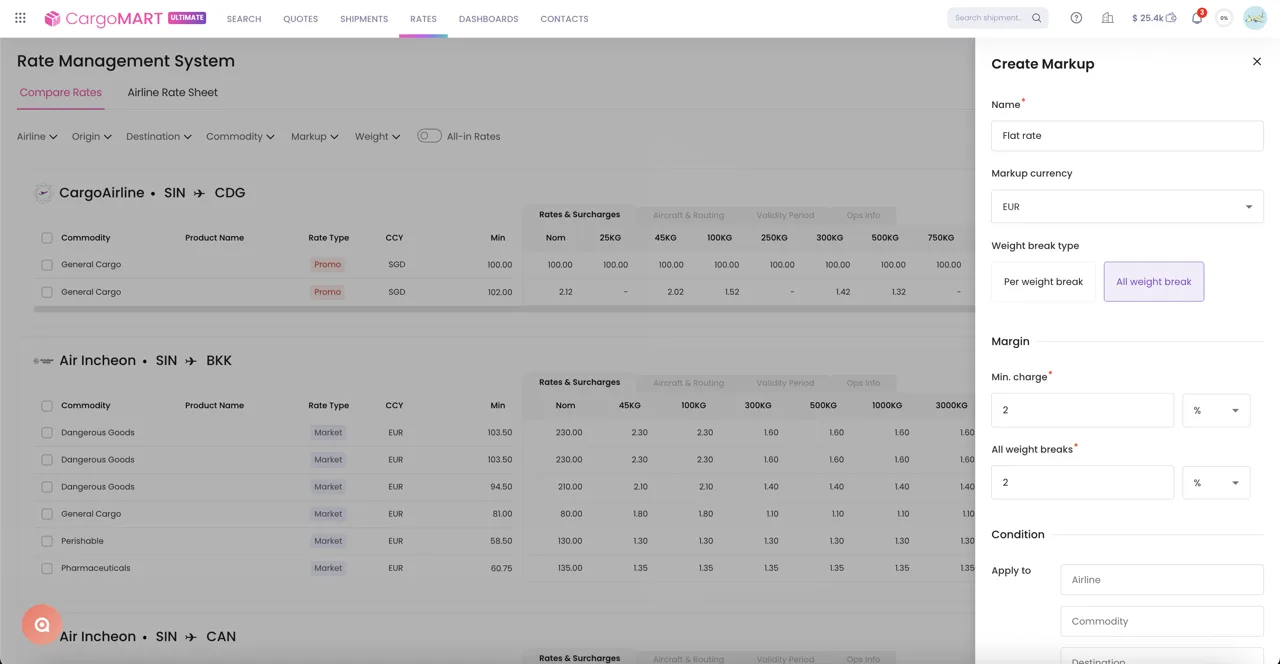
The previous markup settings workflow has been replaced with a new Quick Markup tool directly integrated into the Compare Rates page.
You can now define markups for individual weight breaks or apply them across all weight breaks at once.
Changes are immediately reflected in the rate grid, and markup configurations can optionally be saved for future use.
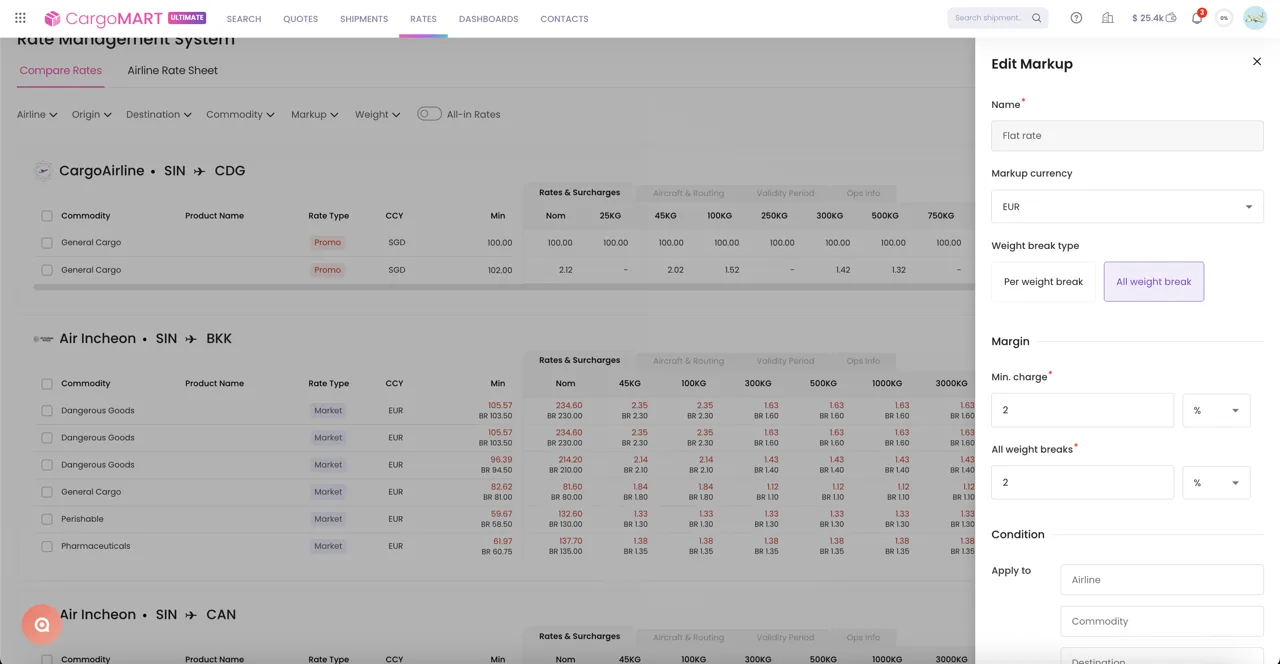
Adjust your selling rates directly while comparing airline prices. Reduce navigation between settings and rate views, and apply consistent markup strategies more efficiently.
Go to Rates → Rate Management System → Compare Rates and use the Quick Markup tool.
Internal forwarder rates in RMS
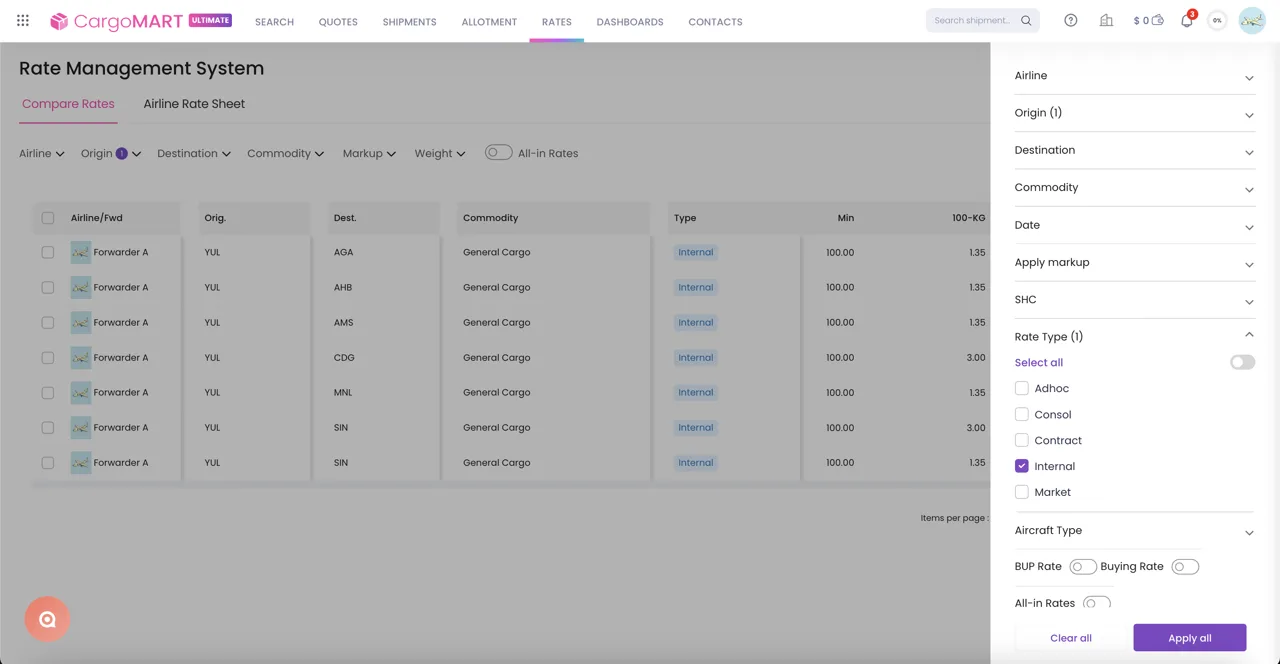
Internal (ISR) rates are now displayed in RMS as Forwarder Rates.
These rates appear above airline rates in both Accordion and Table views, making internal buying rates easier to identify and compare.
Only users with the appropriate access can view these rates.
Quickly identify internal and inter-office buying rates alongside airline pricing, making it easier to compare available options and manage internal rate structures.
Edit Contract, Adhoc, and Consol rates directly
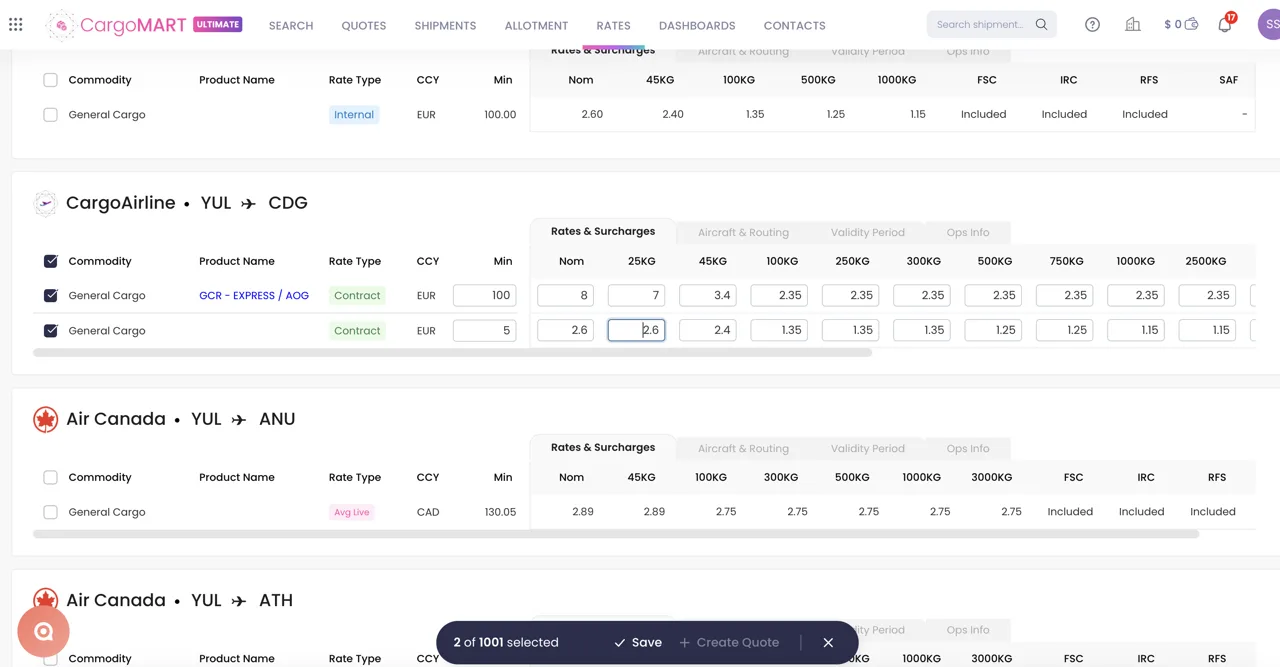
You can now edit Contract, Adhoc, and Consol rate entries directly from the Compare Rates page.
Inline editing is available in both Accordion and Table views, allowing you to update rate information and save or cancel your changes without navigating to a separate editing page.
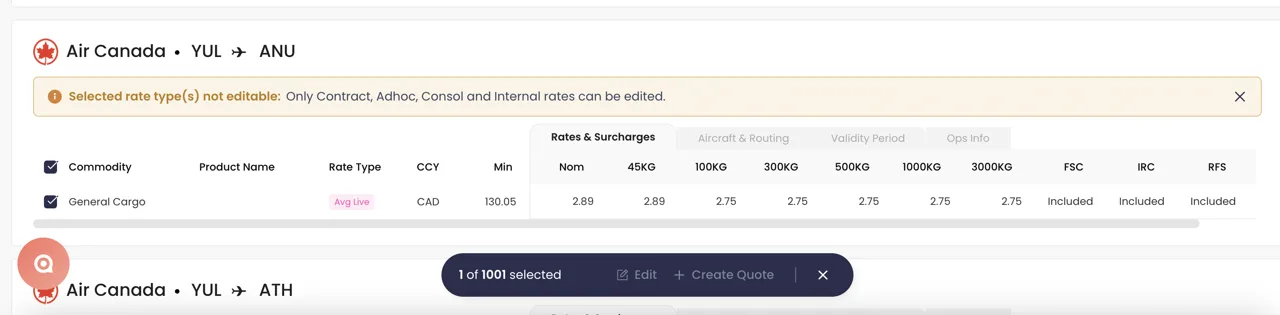
Keep your rates up to date with fewer steps. Make adjustments directly where you compare rates, reducing the time spent switching between different RMS screens.
Go to Rates → Rate Management System → Compare Rates and select the edit action on an eligible Contract, Adhoc, or Consol rate.
eAWB — Special Service Requests
Add Special Service Requests to MAWB and FHL
A new optional "Special Service Request" (SSR) field is now available in the MAWB and FHL forms.
The field supports up to 195 characters and includes a live character counter.
You can use it to provide additional handling or regulatory information, including Known Shipper declarations required for certain shipments to the United States, Canada, or Australia.
When submitted, CargoMART automatically formats the information for transmission through the SSR segment of the FWB message.
The same information is also included in Box 21 (Handling Information) of the generated AWB PDF.
Include important shipment instructions and regulatory declarations directly in your electronic airway bill workflow, reducing the need for separate manual communications.
Open the MAWB or FHL form and complete the optional Special Service Request field.
CO2 Emissions Dashboard — PDF export
Download and share your CO2 emissions dashboard
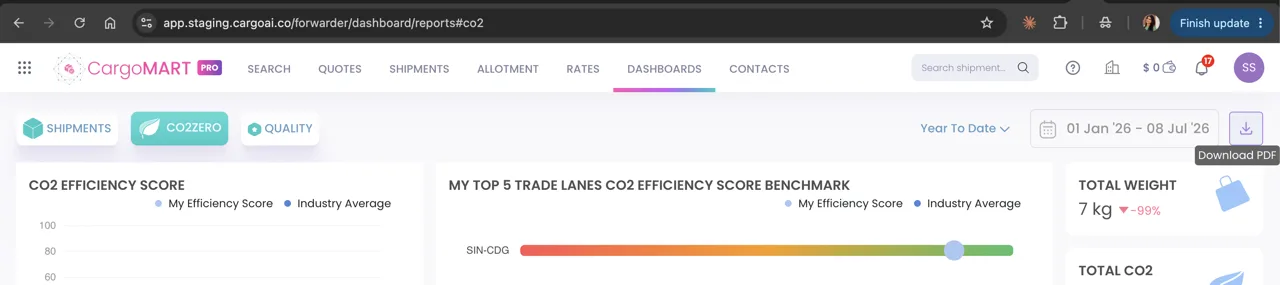
You can now download your CargoMART CO2ZERO dashboard as a single-page PDF.
A new download button is available next to the date range selector, allowing you to export the dashboard for your selected reporting period.
The PDF reproduces the dashboard layout and includes CargoMART branding, your company name, the selected date range, and a generation timestamp.
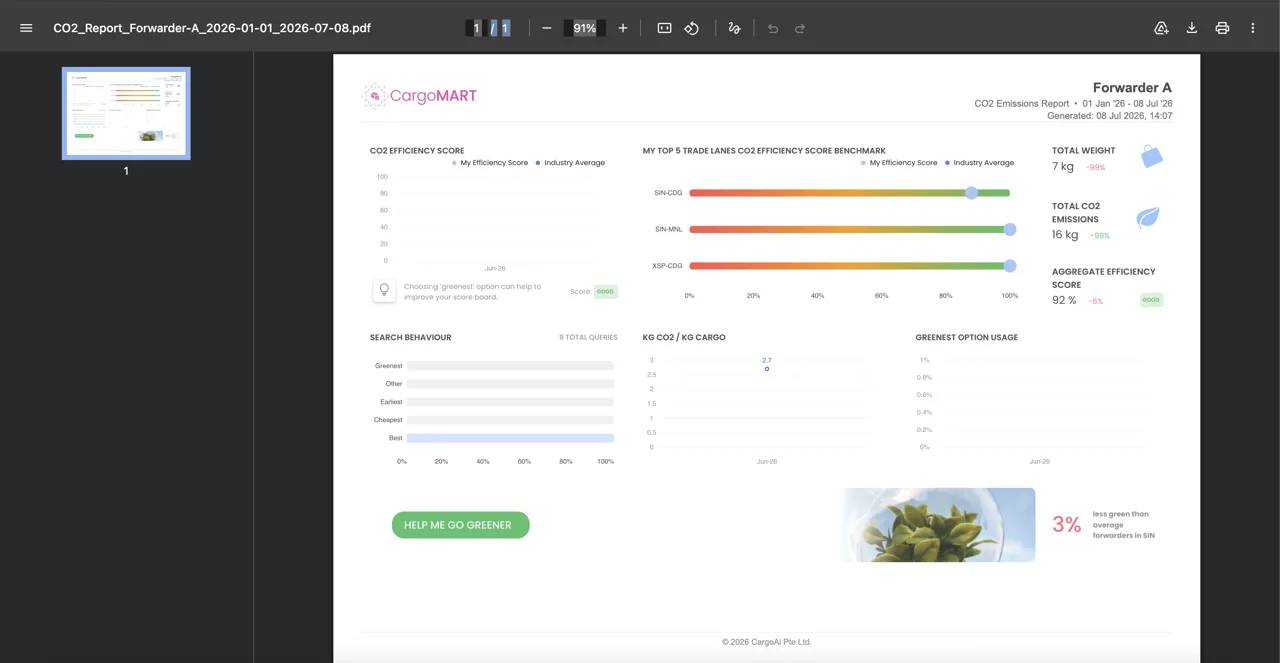
Turn your CO2 emissions data into a ready-to-share sustainability report. Easily provide customers with emissions information without manually recreating charts or preparing separate documents.
Go to Dashboards → CO2ZERO, select your reporting period, and click the Download PDF icon.
Upgrade
From clearer shipment costs and more flexible bookings to enhanced rate management, personalized quotations, and improved team permissions, these latest CargoMART updates are designed to make your daily operations simpler and more efficient.
Explore the new features in your CargoMART workspace and discover how CargoMART can help you manage air cargo operations with greater visibility, flexibility, and control.